#
Face Recognition Settings
This document provides an in-depth overview of the customizable face recognition configuration options available in the AutoAttend system. These settings enable precise control over detection accuracy, recognition performance, and resource utilization to balance system requirements.
#
Settings Overview
The face recognition system provides extensive configuration options across four main categories:
- Model Selection - Choose between different detection and recognition models
- Detection Parameters - Fine-tune confidence thresholds and frame processing
- Performance Optimization - Balance processing speed and resource utilization
- Tracking Configuration - Configure advanced tracking parameters for smooth recognition
#
Configuration Interface
The configuration interface is organized into tabbed sections for easy navigation:

#
Model Settings
AutoAttend supports multiple face detection and recognition models to accommodate various performance and accuracy requirements.
flowchart TD
    subgraph "Face Detection Models"
        style FaceDetection fill:#e3f2fd,stroke:#1565c0,stroke-width:2px
        YOLOv8n["YOLOv8n-face<br>Fastest (smallest)"]
        YOLOv8m["YOLOv8m-face<br>Medium"]
        YOLOv8l["YOLOv8l-face<br>Large"]
        YOLOv10n["YOLOv10n-face<br>Very Fast"]
        YOLOv11l["YOLOv11l-face<br>Most Accurate"]

        YOLOv8n -->|"Speed ↑<br>Accuracy ↓"| YOLOv10n
        YOLOv10n -->|"Speed ↑<br>Accuracy ↓"| YOLOv8m
        YOLOv8m -->|"Speed ↓<br>Accuracy ↑"| YOLOv8l
        YOLOv8l -->|"Speed ↓<br>Accuracy ↑"| YOLOv11l

        style YOLOv8n fill:#bbdefb,stroke:#1565c0,color:black
        style YOLOv10n fill:#bbdefb,stroke:#1565c0,color:black
        style YOLOv8m fill:#90caf9,stroke:#1565c0,color:black
        style YOLOv8l fill:#64b5f6,stroke:#1565c0,color:black
        style YOLOv11l fill:#42a5f5,stroke:#1565c0,color:black
    end

    subgraph "Face Recognition Models"
        style FaceRecognition fill:#e8f5e9,stroke:#2e7d32,stroke-width:2px
        MobileNet["InsightFace MobileNet<br>Fastest"]
        R50["InsightFace R50<br>Balanced"]
        R100["InsightFace R100<br>Most Accurate"]

        MobileNet -->|"Speed ↑<br>Accuracy ↓"| R50
        R50 -->|"Speed ↓<br>Accuracy ↑"| R100

        style MobileNet fill:#c8e6c9,stroke:#2e7d32,color:black
        style R50 fill:#a5d6a7,stroke:#2e7d32,color:black
        style R100 fill:#81c784,stroke:#2e7d32,color:black
    end

    Detection["Face Detection<br>Step"] --> YOLOv8n & YOLOv10n & YOLOv8m & YOLOv8l & YOLOv11l
    Recognition["Face Recognition<br>Step"] --> MobileNet & R50 & R100

    style Detection fill:#e1f5fe,stroke:#0288d1,stroke-width:2px,color:black
    style Recognition fill:#e8f5e9,stroke:#2e7d32,stroke-width:2px,color:black
#
Detection Models
#
Recognition Models
#
Detection Settings
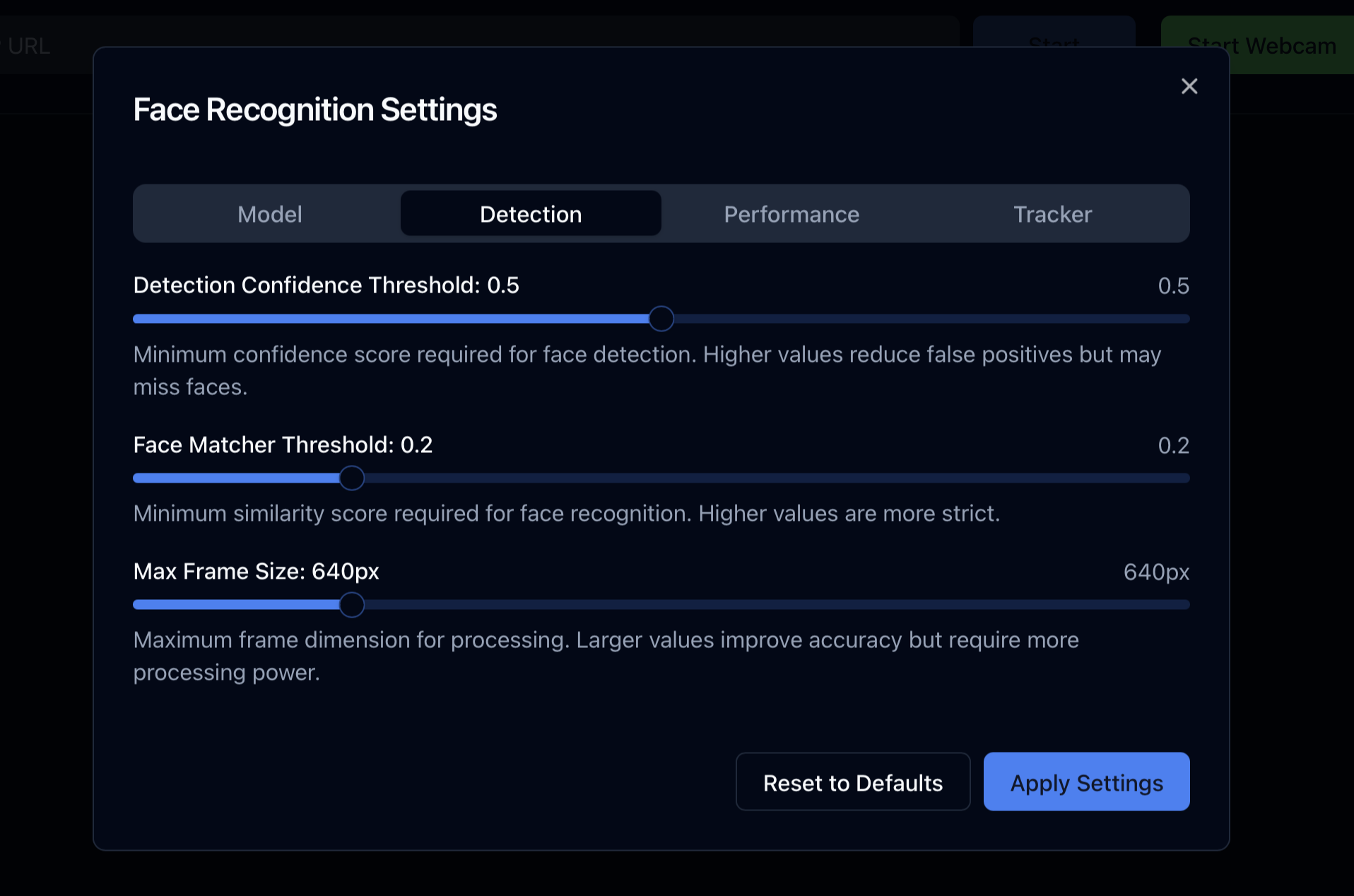
The detection settings control the core behavior of the face detection and recognition pipeline.
#
Confidence Threshold
The confidence threshold (range: 0.0-1.0) determines how certain the model must be before considering a detection valid.
- Higher values (e.g., 0.7-0.9): Fewer false positives, but may miss some faces
- Lower values (e.g., 0.3-0.5): Detects more faces, but may include false positives
- Recommended: 0.5 for general use
#
Face Matcher Threshold
The face matcher threshold (range: 0.0-1.0) controls how similar a detected face must be to a known face for recognition.
- Higher values (e.g., 0.7-0.9): More strict matching, lower false acceptance rate
- Lower values (e.g., 0.1-0.3): More lenient matching, higher false acceptance rate
- Recommended: 0.2 for balanced performance
#
Max Frame Size
Maximum frame dimension in pixels for processing. Larger values provide higher detection accuracy but require more processing power.
- Range: 320-1920 pixels
- Recommended:
- 640px for real-time processing on standard hardware
- 1280px for higher accuracy where processing power allows
#
Performance Settings
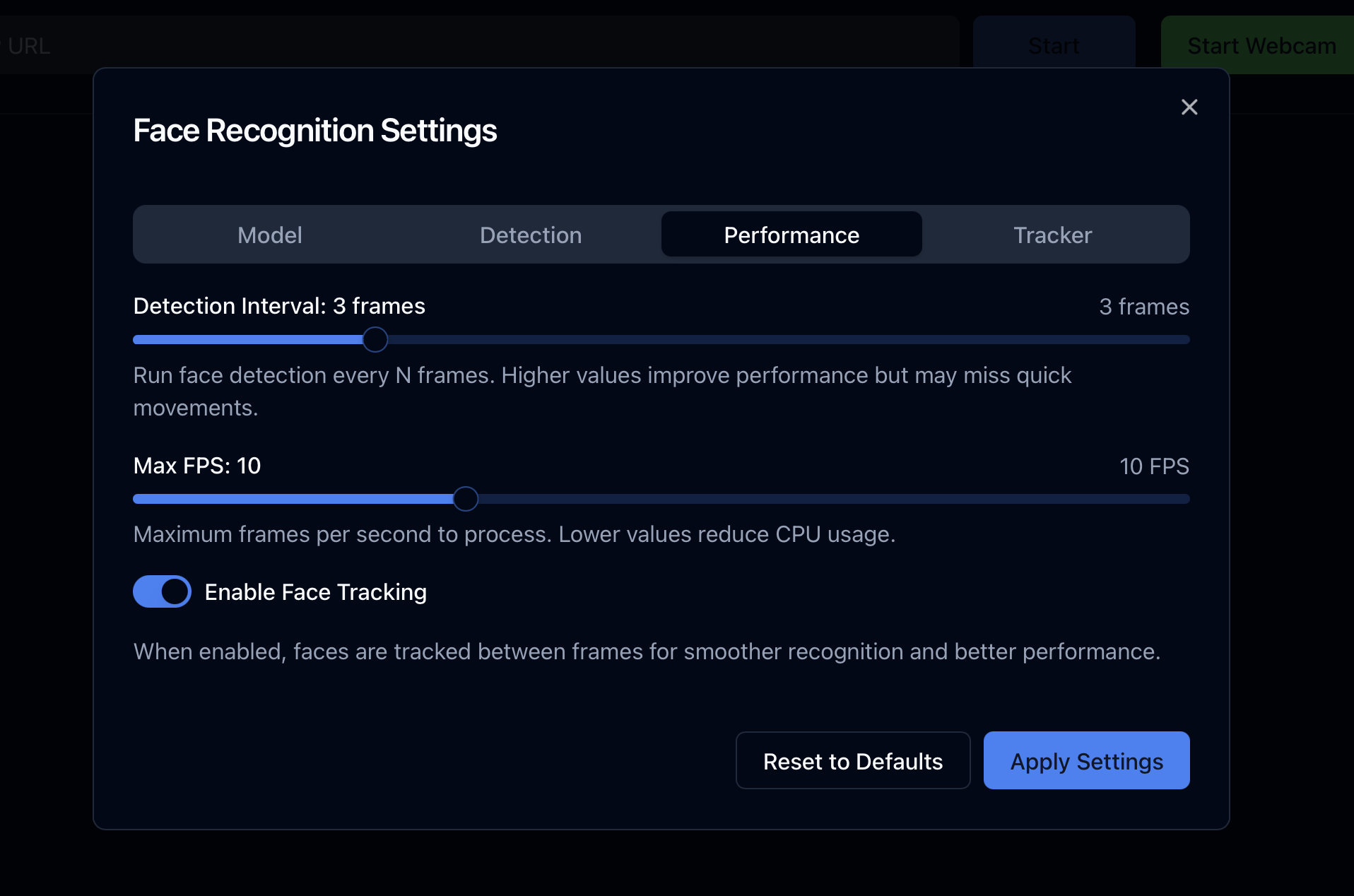
Performance settings allow you to balance processing speed, resource utilization, and detection quality.
#
Detection Interval
The detection interval determines how often (in frames) full face detection is performed.
- Range: 1-10 frames
- Lower values (e.g., 1-2): More responsive detection, higher CPU usage
- Higher values (e.g., 5-10): More efficient processing, may miss quick movements
- Recommended: 3 for general use
#
Max FPS
Maximum frames per second to process. Lower values reduce CPU usage.
- Range: 1-30 FPS
- Lower values (e.g., 5-10): Reduced CPU load, suitable for background processing
- Higher values (e.g., 15-30): Smoother experience, better for interactive scenarios
- Recommended: 10 for balanced performance
#
Face Tracking
When enabled, faces are tracked between frames for smoother recognition and better performance. This setting enables Norfair tracking features.
- Enabled: Better performance with smooth tracking between frames
- Disabled: Process each frame independently (higher CPU usage)
- Recommended: Enabled for most use cases
#
Tracker Settings
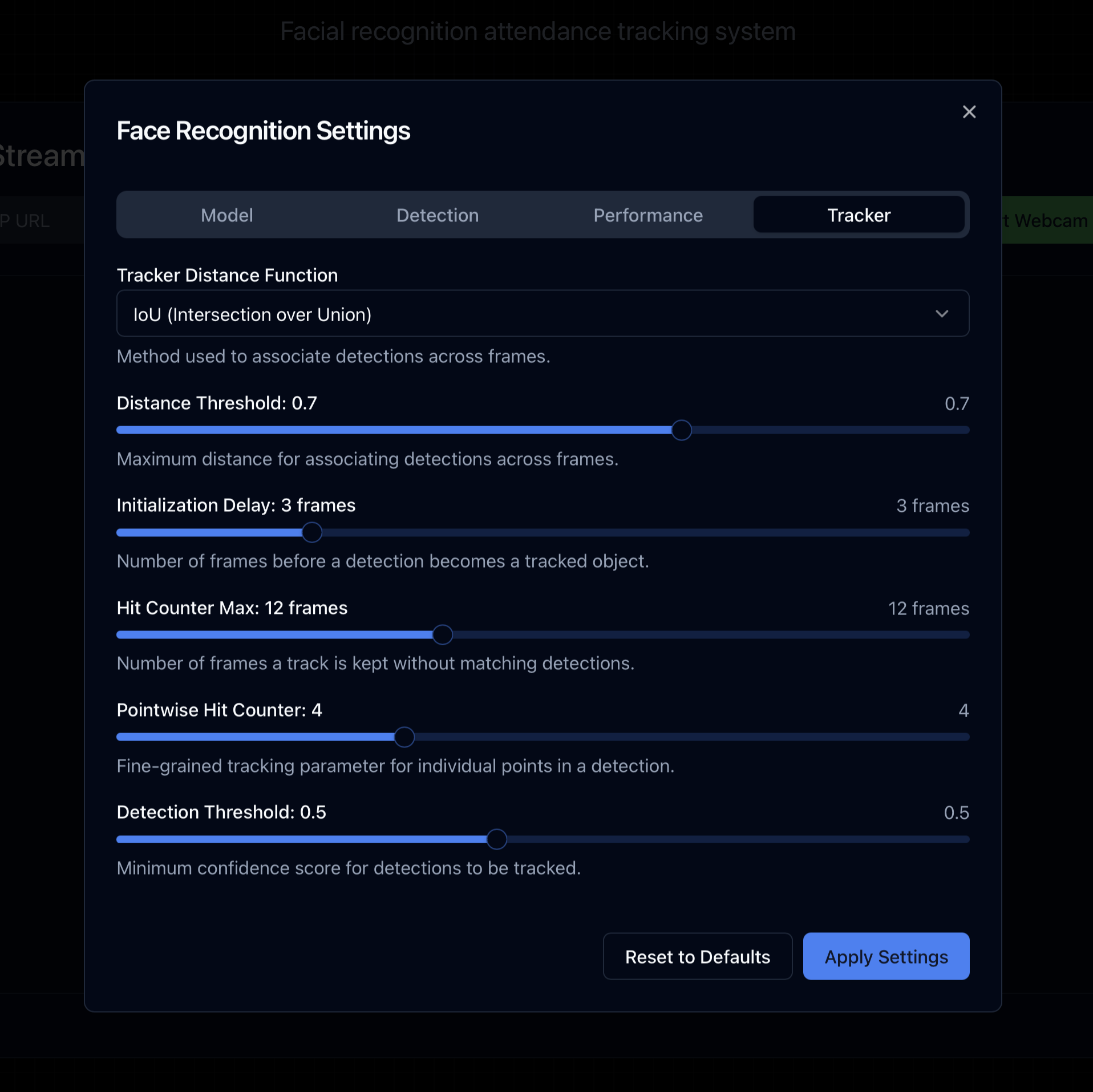
Advanced settings for fine-tuning the Norfair object tracking system.
#
Distance Function
Method used to associate detections across frames:
- IoU (Intersection over Union): Best for most face tracking scenarios
- Euclidean Distance: Alternative for special cases where IoU doesn't perform well
- Manhattan Distance: May perform better in certain grid-aligned scenarios
- Recommended: IoU for face tracking
#
Distance Threshold
Maximum distance for associating detections across frames (range: 0.1-1.0).
- Higher values: More lenient association, may confuse different faces
- Lower values: Stricter association, may fragment tracks of the same face
- Recommended: 0.7 for face tracking
#
Initialization Delay
Number of frames before a detection becomes a tracked object (range: 1-10).
- Higher values: More stable tracks, less flickering, but slower to initialize
- Lower values: Faster tracking initialization, may include some false tracks
- Recommended: 3 frames
#
Hit Counter Max
Number of frames a track is kept without matching detections (range: 1-30).
- Higher values: Tracks persist longer through occlusions
- Lower values: Tracks are removed more quickly when faces disappear
- Recommended: 12 frames
#
Pointwise Hit Counter Max
Fine-grained tracking parameter for individual points in a detection (range: 1-10).
- Higher values: More stable tracking of individual facial points
- Lower values: Quicker updates to facial point positions
- Recommended: 4 for face tracking
#
Detection Threshold
Minimum confidence score for detections to be tracked (range: 0.1-1.0).
- Higher values: Only high confidence detections are tracked
- Lower values: Track lower confidence detections as well
- Recommended: 0.5 for balanced performance
#
Performance Impact
The following table illustrates the approximate impact of different configuration combinations on system performance:
Highest Performance Configuration:
- Face Detection: YOLOv8n-face
- Face Recognition: InsightFace MobileNet
- Max Frame Size: 480px
- Detection Interval: 6
- Face Tracking: Enabled
Balanced Configuration:
- Face Detection: YOLOv8m-face
- Face Recognition: InsightFace R50
- Max Frame Size: 640px
- Detection Interval: 3
- Face Tracking: Enabled
Highest Accuracy Configuration:
- Face Detection: YOLOv11l-face
- Face Recognition: InsightFace R100
- Max Frame Size: 1280px
- Detection Interval: 1
- Face Tracking: Enabled
#
Technical Implementation
#
Face Detection Process
The AutoAttend system uses a multi-stage processing pipeline for face detection and recognition:
flowchart TD
    FrameInput["Video Frame Input"] --> Resize["Resize Frame<br>(Max Frame Size)"]

    Resize --> DetectionCheck{"Detection<br>Interval Check"}
    DetectionCheck -->|"Current Frame % Interval == 0"| RunDetection["Run YOLO<br>Face Detection"]
    DetectionCheck -->|"Otherwise"| SkipDetection["Skip Full Detection<br>(Use Tracking Only)"]

    RunDetection --> ConvertDetections["Convert YOLO Detections<br>to Norfair Format"]
    ConvertDetections --> UpdateTracker["Update Tracker<br>with New Detections"]
    SkipDetection --> UpdateTrackerOnly["Update Tracker<br>without New Detections"]

    UpdateTracker --> ProcessTracked["Process<br>Tracked Objects"]
    UpdateTrackerOnly --> ProcessTracked

    ProcessTracked --> FaceRecognitionCheck{"Face<br>Recognition<br>Required?"}

    FaceRecognitionCheck -->|"Yes<br>(New Track or Interval)"| ExtractFace["Extract Face<br>from Frame"]
    FaceRecognitionCheck -->|"No<br>(Use Cached Result)"| UseCached["Use Cached<br>Recognition Result"]

    ExtractFace --> RunRecognition["Run Face Recognition<br>(InsightFace)"]
    RunRecognition --> CacheResult["Cache Recognition<br>Result"]

    CacheResult --> DrawResults["Draw Bounding Box<br>and Labels"]
    UseCached --> DrawResults

    DrawResults --> ReturnFrame["Return<br>Processed Frame"]

    style FrameInput fill:#bbdefb,stroke:#1565c0,stroke-width:1px
    style Resize fill:#bbdefb,stroke:#1565c0,stroke-width:1px
    style DetectionCheck fill:#fff3e0,stroke:#e65100,stroke-width:1px
    style RunDetection fill:#c8e6c9,stroke:#2e7d32,stroke-width:1px
    style SkipDetection fill:#c8e6c9,stroke:#2e7d32,stroke-width:1px
    style ConvertDetections fill:#c8e6c9,stroke:#2e7d32,stroke-width:1px
    style UpdateTracker fill:#e8f5e9,stroke:#2e7d32,stroke-width:1px
    style UpdateTrackerOnly fill:#e8f5e9,stroke:#2e7d32,stroke-width:1px
    style ProcessTracked fill:#e8f5e9,stroke:#2e7d32,stroke-width:1px
    style FaceRecognitionCheck fill:#fff3e0,stroke:#e65100,stroke-width:1px
    style ExtractFace fill:#ede7f6,stroke:#4527a0,stroke-width:1px
    style RunRecognition fill:#ede7f6,stroke:#4527a0,stroke-width:1px
    style CacheResult fill:#ede7f6,stroke:#4527a0,stroke-width:1px
    style UseCached fill:#ede7f6,stroke:#4527a0,stroke-width:1px
    style DrawResults fill:#ffebee,stroke:#c62828,stroke-width:1px
    style ReturnFrame fill:#ffebee,stroke:#c62828,stroke-width:1px
#
Settings Integration
The configurable settings directly impact each stage of the processing pipeline:
- Model settings determine which neural network models are loaded for detection and recognition
- Detection settings control confidence thresholds and input frame sizing
- Performance settings manage processing intervals and throughput
- Tracker settings fine-tune how faces are tracked between frames
#
Best Practices
#
General Recommendations
- Start with the balanced configuration and adjust based on your specific requirements
- Monitor CPU and memory usage when changing settings
- For high-traffic areas, prioritize performance settings
- For security applications, prioritize accuracy settings
#
Environment-Specific Recommendations
#
Troubleshooting
#
Common Issues
#
Performance Monitoring
Monitor the system performance metrics to identify bottlenecks:
# CPU usage per process
top -o %CPU

# Memory usage
free -m

# FPS metrics (from application logs)
kubectl logs -n backend -l app=backend | grep "FPS"
#
Related Documentation
For comprehensive information about the complete AutoAttend system, please refer to:
- AutoAttend Architecture - System architecture and deployment
- Registration System - Student enrollment and face embedding capture